
Scan to open this page
Drone Command:
Operation Uplink
Sonar Technician (Surface) 3rd Class Kiera Taylor aboard USS Antietam (CG 54), Jan. 21, 2023. U.S. Navy photo by Ensign William Stricklett, public domain via DVIDS.
Lesson Overview
The Drone Command – Operation Uplink skillmap introduces students to Artificial Intelligence–inspired decision-making through a fast, game-based coding experience. Students program their own underwater drone to collect data pods, evade enemy sonar buoys, and safely upload their findings to a Navy ship in a scrolling ocean arena.
They then build an AI advisor from if / else-if / else rules that read sensor numbers and recommend Collect, Upload, or Avoid. Optional levels let the advisor pilot the drone on autopilot, and students compare their Mission Reports to improve their rules. Students can choose sprites from a built-in gallery or draw their own pixel art. Made for grades 9–12, with no previous coding experience required.
How the Lesson Runs
-
Warm-Up: Heuristics~20 min
Students play a partner game of Battleship and invent simple rules of thumb (heuristics) to search faster, then debrief which rules worked best. This sets up the idea behind the AI advisor they build later.
-
Prepare Your Drone~11 min
Learn the MakeCode interface, build the ocean, create and move a drone sprite (pick one from the gallery or draw your own), and follow it with the camera.
-
Incoming Ship~13 min
Create the Navy ship (choose a design or draw one), give it its own Ship kind (spelled with a capital S), build the randomness blocks that place it, and keep it safely on screen.
-
Enemy Waters~19 min
Add data pods, roaming sonar buoys, and collision rules. Use a sonar pulse to disable buoys, and see why it also gives your position away. Choose or draw the data pods and the pulse picture.
-
Upload Complete~14 min
Build the upload rule yourself: an event that fires when the drone touches the ship, adds the data it carries to the score, and empties the cargo. Then use if/else for a speed boost.
-
Build Your Advisor~12 min
Build the advisor's 350 ms loop, then write the if / else-if / else rules that turn sensor readings into advice: Collect, Upload, or Avoid.
-
Certificate earnedafter level 5
Students who finish the first five levels get their completion certificate, and are encouraged to keep coding with the optional levels.
-
Wrap-Up: AI Discussion~5–10 min
Students compare their Mission Reports and talk through questions such as: Is this advisor really AI? When should a human take control back from the autopilot? How can we decide when to trust AI outputs, and how can we improve them? Students can also share a link to their game and playtest each other’s.
-
Fly With Your Advisor~9 minoptional
Switch on the autopilot so the advisor pilots the drone (students steer by hand if it gets stuck), complete the mission, read the Mission Report, and tune the settings to beat it.
-
Challenge Lab10+ minoptional
Pick a Bronze, Silver, or Gold challenge: tinker with the game, strategize against your own report, or engineer a smarter advisor. Students can also switch to new ocean maps, compare their Mission Reports, and teach their advisor to use the sonar pulse. At the end, students are pointed to Save to My Projects (every MakeCode block) and Share.
Also on the skillmap: The Finished Game, a stand-alone optional node in the top-right corner. Anyone can play the complete game with the AI advisor and autopilot, switch between four ocean maps (open water, shipwreck graveyard, caves, and currents), try the Bronze, Silver, and Gold challenges, or use it to model the activity before students begin.
Seven levels: five to the certificate, then two optional extensions. The warm-up and the wrap-up discussion happen away from the computer. Time estimates are approximate and come from the lesson length, so allow extra time for testing, debugging, and creative extensions.
Student Objectives
- Connect computer science concepts to real-world naval engineering contexts
- Design and test an AI-inspired heuristic system using simple decision rules
- Compare designs using data from a Mission Report
- Reflect on trade-offs between performance, safety, and data collection in autonomous systems
- Gain confidence in coding, debugging, and creative problem-solving
Coding Concepts
- Sprites, events (overlap), and variables
- Randomness and conditional logic (if / else-if / else)
- Sensor readings, thresholds, and comparing numbers
- Loops, collisions, and scoring systems
- Designing sprites with the pixel image editor
- Abstraction and modular code using custom blocks
Standards
CSTA 2026 (High School, Grades 9–12)
HS-ALG-PS-03Evaluate algorithms for efficiency, correctness, and clarity using metrics or test casesHS-PRO-TR-20Refine a computing technology based on testing results to improve its effectivenessHS-SOC-CE-46Connect computing knowledge and skills to personal goals and career aspirationsHS-ALG-IM-10Evaluate the ethical implications, societal impacts, and biases of rule-based algorithmsHS-ALG-PS-04Describe the differences between deterministic and probabilistic algorithmsHS-PRO-PD-12Create a modular program that uses procedures to improve reusability and readabilitySpecialty and NGSS standards
CSTA 2026 Specialty: Game Development
S1-GMD-DD-03Develop an interactive experience to support gameplayS1-GMD-DD-04Adapt rule-based logic to improve control of game agents or systemsCSTA 2026 Specialty: Artificial Intelligence
S1-AIN-HR-08Plan safeguards that keep meaningful human involvement in AI decisionsS1-AIN-DD-05Evaluate whether an AI or non-AI solution is appropriate for a problemNGSS Connections
HS-ETS1-2Break a complex problem into smaller, manageable engineering problemsHS-ETS1-3Evaluate a solution based on prioritized criteria and trade-offsHS-ETS1-4Use a computer simulation to model the impact of proposed solutionsMaterials
STEM Careers
Students meet each of these Navy careers in a Career Spotlight pop-up as they play. Each photo is credited to its source in the pop-up (U.S. Navy, Navy.com, and DVIDS imagery).
Where Students Play: The Skill Map
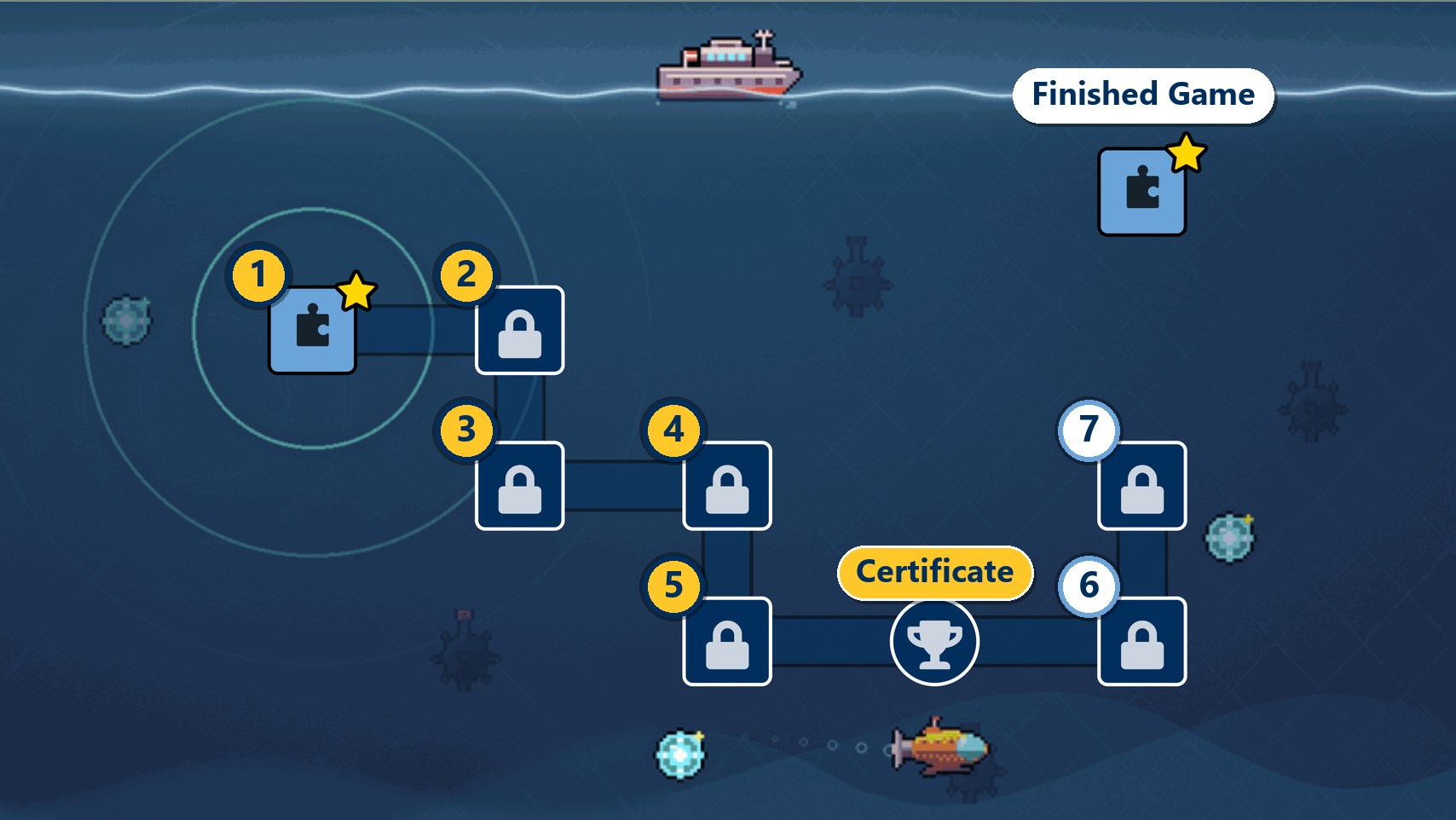
The skill map is the main part of the activity. Students open it, start on the first tile, and work through the levels at their own pace, building the game they will play at the end. Each finished tile unlocks the next one. The Battleships warm-up is a fun way to begin, but it can be skipped if time is short, and students can go straight to the map.
- 1–5Build the game. Levels 1 to 5 take about 60–80 minutes. Finishing Level 5 unlocks the Certificate.
- 6–7Go further (optional). Fly With Your Advisor (autopilot) and the Challenge Lab.
- ★Finished Game. A stand-alone tile you can play any time, handy for showing students the finished game before they begin.
Meet the AI Advisor
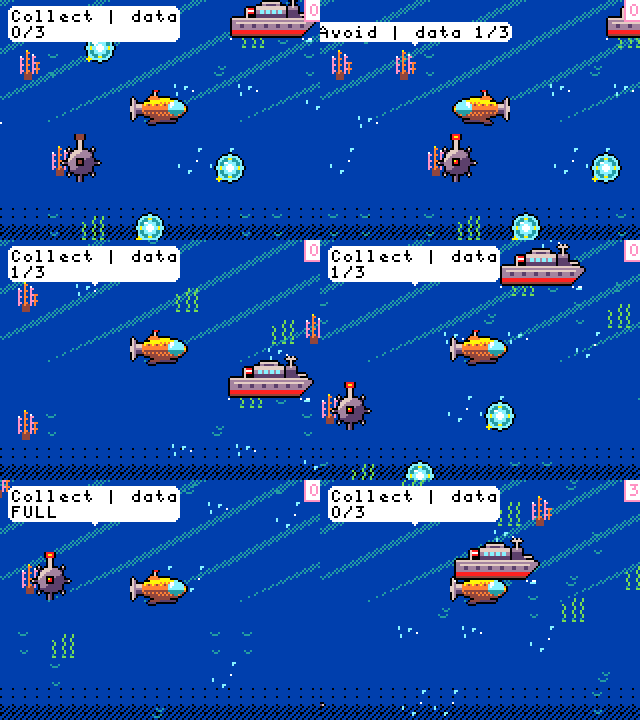
In level 5, students build the advisor themselves. Simple if / else-if / else rules read the drone's sensors and recommend one of three actions, shown on a live HUD. In level 6, the advisor's advice can steer the drone on autopilot.
Collect
Data shards are in reach and the waters are clear, so the advisor says keep gathering.
Upload
Enough data is onboard, so the advisor points the drone toward the Navy ship.
Avoid
A sonar buoy is too close, so the advisor warns the drone to evade.
if (distance to nearest buoy < danger radius) { set advice to AVOID }
else if (data carried >= upload at) { set advice to UPLOAD }
else { set advice to COLLECT }
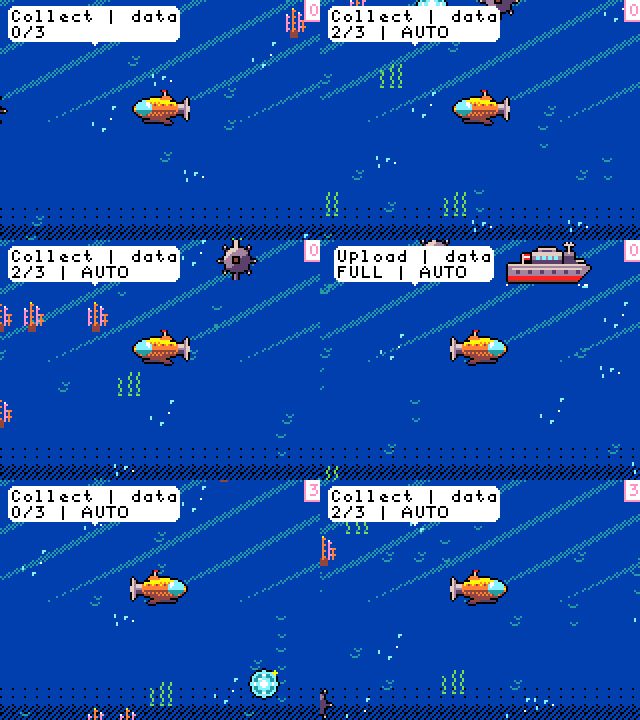
From advice to action: the autopilot
In level 6, students add one block and watch the HUD switch to AUTO. The advisor’s advice now decides how the drone steers.
Collect
The autopilot heads for the nearest data pod.
Upload
The autopilot heads for the Navy ship.
Avoid
The autopilot moves away from the nearest buoy.
if (advice is AVOID) { steer away from the nearest buoy }
else if (advice is UPLOAD) { steer toward the ship }
else { steer toward the nearest data pod }
Autopilots are only as good as their rules. Students watch for mistakes, decide which rule would fix them, and can press B to switch the autopilot off and take control back with the joystick.
Lesson Materials
Everything educators and parents need to run Operation Uplink in a classroom or at home.
Play the Game
Launch the activity in MakeCode Arcade.
Launch → SlidesTeacher Presentation
Warm-up, game walkthrough, answer keys, and AI discussion questions.
Open → WorksheetStudent Worksheet
Warm-up worksheet for students.
Open → CertificateCompletion Certificate
Type your name in the box, then print.
Open →